Found a Bluesky video you want to keep? Bluesky doesn’t have a save button for videos, so use VidMate: paste the post link above and save the Bluesky video as a 1080p MP4 with sound, a smaller MP4 or an MP3. No account, no handle, no app password.
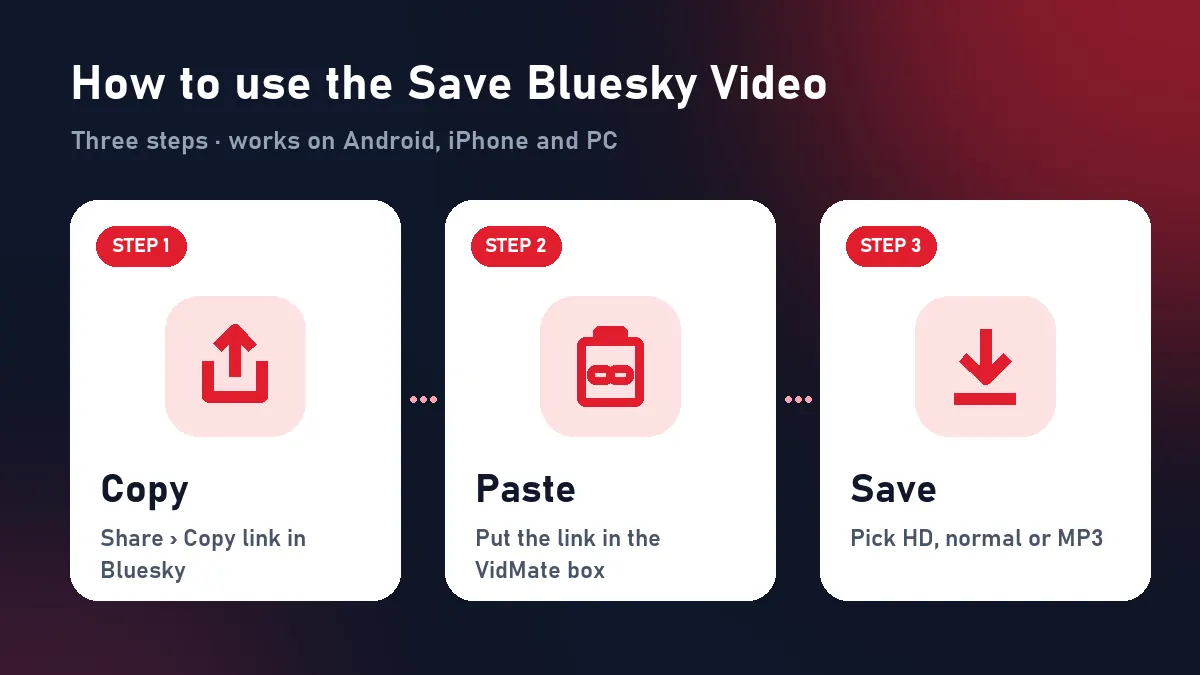
Quick answer: Share › Copy link to post → paste above → Download → choose a format.
How to save a Bluesky video
| Device | Steps |
|---|---|
| Android | Copy link in the Bluesky app › paste here in Chrome › Download HD › Files › Downloads |
| iPhone | Copy link › paste in Safari › Download HD › Files › Downloads › Share › Save Video |
| PC / Mac | Open the post on bsky.app › copy the address › paste › Download HD |
What’s inside a Bluesky video
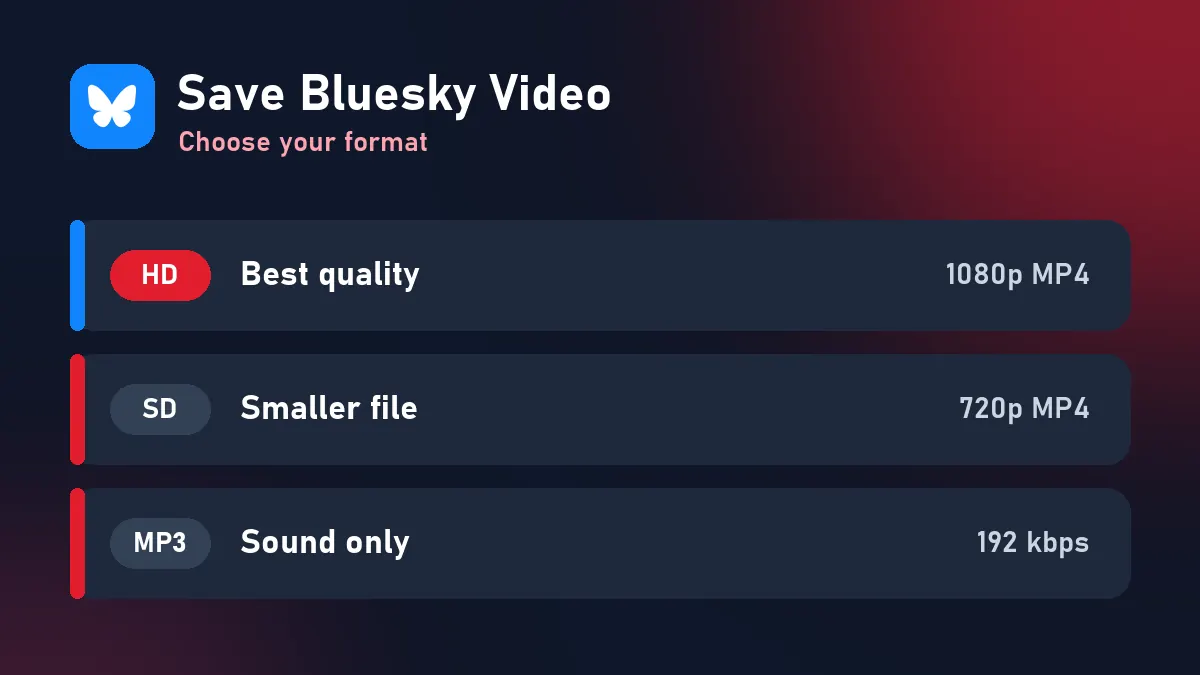
Bluesky’s video service turns every upload into an HLS stream: a playlist of short segments, normally at two sizes (for example 1080p and 720p). VidMate reads the public post through Bluesky’s open AT Protocol API, picks the size you want and joins the segments into a single MP4. The picture isn’t re-encoded, and the sound is included.
Bluesky links that work
bsky.app/profile/name.bsky.social/post/…bsky.app/profile/your.custom.domain/post/…bsky.app/profile/did:plc:…/post/…
Profiles, feeds and lists aren’t single posts, so they can’t be saved. Open the post first.
Save Bluesky video safely
Some “downloaders” ask for your Bluesky handle and app password. Don’t give it: an app password lets a service read and post as you. Saving a Bluesky video only requires the public post link, and VidMate never asks for anything else.
Why people save Bluesky videos
- Keeping a copy of your own uploads (Bluesky has no export for videos).
- Archiving news clips and statements with the post link as the source.
- Sharing a clip with friends who aren’t on Bluesky.
If it doesn’t work
| What you see | Reason | Fix |
|---|---|---|
| “No video found” | Image post, link card or Tenor GIF | Choose a post with an uploaded video |
| “Unavailable” | Deleted, or hidden from logged-out users | Check it opens in a private window |
| Profile link refused | Not a post | Copy the post’s link |
| Expired buttons | 10-minute limit | Paste the link again |
The Bluesky downloader page has more on formats. Credit the poster’s handle when you share a saved video.
Frequently asked questions
Can I save a Bluesky video without logging in?
Yes. Public Bluesky posts download without an account.
What is the best quality?
1080p MP4 when the video was uploaded in Full HD; otherwise the largest size Bluesky keeps.
Should I give a downloader my app password?
Never. An app password lets a service act as you. VidMate only needs the post link.
Can I save GIFs from Bluesky?
GIFs on Bluesky are usually Tenor links, not uploaded videos. VidMate saves videos uploaded to Bluesky itself.
Where is the saved video on iPhone?
In Files › Downloads. Tap it and choose Share › Save Video to move it to Photos.